Inbox Tips and Tricks
Beeper's Inbox is designed to help you hit that elusive Inbox Zero. This guide will help you navigate all the buttons and tricks you’ll need to learn to master the Beeper Inbox on all of our clients.

How does it work?
Inbox
Beeper brings your chats for all your connected chat networks into the main inbox. While people manage their inbox differently, the inbox is designed to show you your active chats. A chat is considered active when it matches one of the below criteria:
- Unread messages.
- Read messages that haven't been moved to Archive or Low Priority
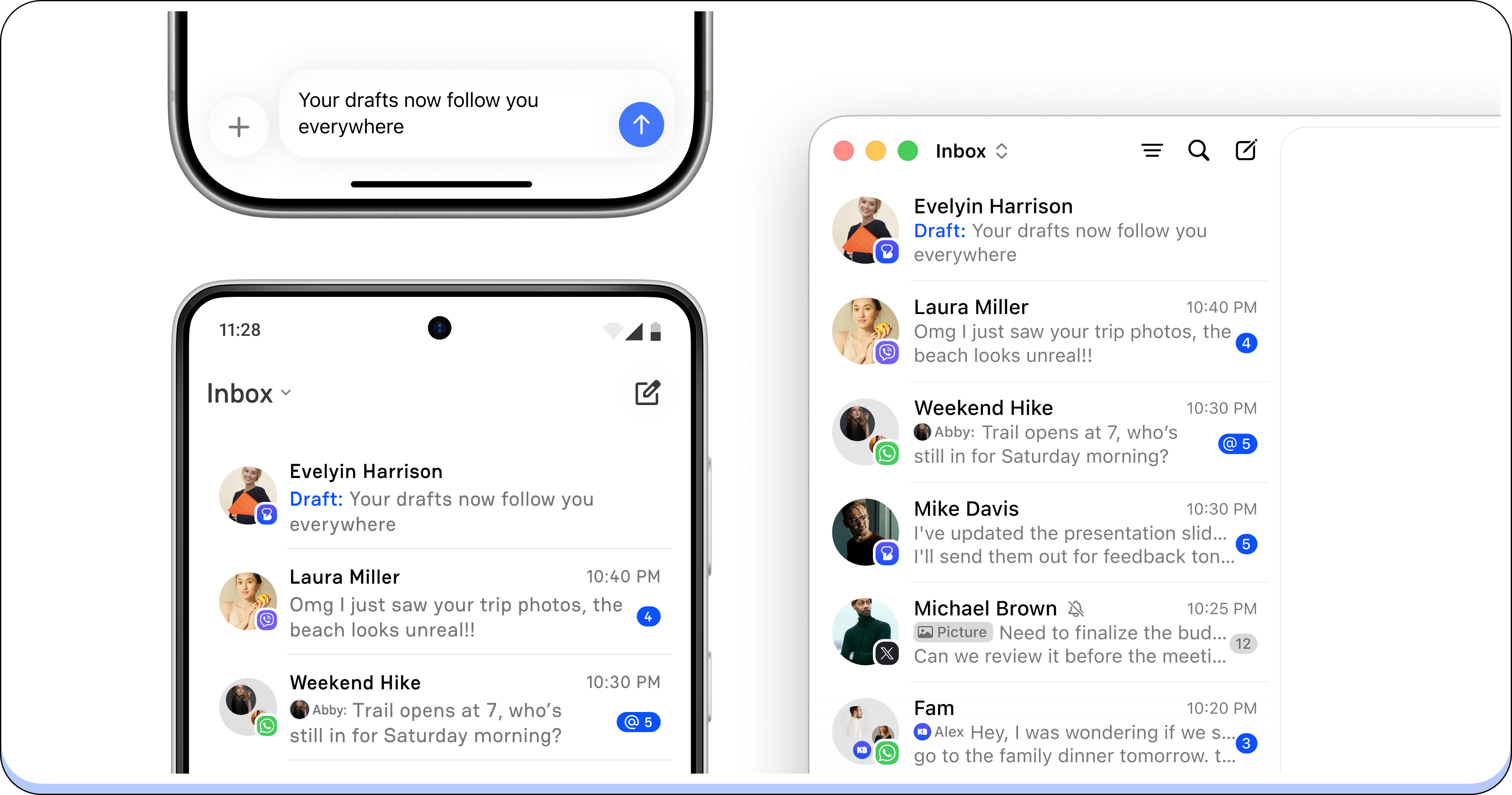
- Drafts where you have typed a message in the composer but have not hit send. Text drafts sync across your Beeper devices, so a draft you start on one device also shows up on your others.
In some cases, your chats may not show up in the inbox depending on settings you select. Some of those are:
- Moving a chat to Archive
- Moving a chat to Low Priority
-
Changing a chat network account's inbox visibility
- Settings > Accounts > your chat network > Show in All Inbox > choose between None, DMs only, or All Messages
- Adding a chat to a Label that is set to not show in the inbox
Sidebar
On Beeper iOS, if you want to see messages for a specific chat network account, you can use the sidebar to select the chat network you want to see messages for.
Pins
Beeper lets you pin chats at the top of your screen for easy access. On Beeper desktop, you can pin a chat by right-clicking the chat and choosing Pin. Similarly, you just need to long press on a chat on Beeper iOS and Android and then select ‘Pin’ to pin the chat to the top of your inbox.
You can reorder your pins anytime by dragging the pinned chat icons to the location you want to move them to.

Archive
Users have the option to move chats to the Archive space when they do not want to see it in the inbox temporarily until there's new activity in the chat. Archived chats pop back into the inbox with any new activity including new received or sent messages, reactions, or marking as unread.
How to archive a chat: 🖥️ On Beeper desktop, you will be able to archive a chat by hovering over it and clicking on the archive button to its right or right-clicking on the chat and selecting Archive. This moves the chat into the Archive folder.
Please note that there's currently no way to disable the Archive button that appears when you hover on a message on Beeper desktop.
On 🍎 iOS and 🤖 Android, if you want to archive a chat, just long press on a chat room and select Archive. You can also customize swipe left or right actions in Settings > Preferences to Archive.
To unarchive a chat on 🖥️ Beeper desktop, hover over the chat and click on the archive button OR right-click on a chat and select ‘Archive’. On 🍎 iOS and 🤖 Android, long press on the chat and select ‘Unarchive’.
💡 Important note: Keep in mind that archiving a chat in Beeper doesn't archive it in your native chat network app

Low Priority
Marking a chat as Low Priority moves that chat to the Low Priority space and mutes it. This means that you will not receive any notifications from the chat except if the message you receive is an @mention or a threaded reply to one of the messages you sent.
💡 We recommend this option for spam or any chat that you don't want to see in your Inbox more permanently (versus using Archive, where the chat goes back into the inbox when you send or receive a new message or mark it as unread).

Inbox Views and Filters
From the Beeper Desktop Inbox you will be able to move through your Inbox, Archive, Requests, and Low Priority folders. Reminders and Send Later are also available for Beeper Plus and Beeper Plus Plus subscribers.
You can also filter your view by Unread, Drafts, Unanswered, and Groups.

Inbox Actions
Multi-select mode:
To select multiple chats in your inbox on 🖥️ Beeper desktop, right click on any chat and select ‘Begin Selecting’ or press CMD/CTRL and click on any chat room. This will automatically take you to multi-select mode, where you an select multiple chat rooms and apply an action in bulk. Once you've selected all the chats you want to apply an action to, you should be able to right-click on any of them and select between Archive, Mute, Mark All as Read, Mark All as Unread, Pin, Copy, Move to Low Priority, Label, Remind Me, and Report a Problem.
For 🍎 Beeper iOS, click on the inbox dropdown menu and choose 'Select Chats'.
Mute
Muted chats will remain listed in the Inbox, but you won't receive any notification for them. You will only receive a notification if an @mention or a reply to your message is sent in a muted chat room. You will also see a silent bell icon to the right of a muted chat.
To mute a chat, long-press the chat in question and select Mute.
Search
Looking for a specific chat or message? All three apps (Desktop, iOS, and Android) offer a search feature that lets you search by keyword. You can also select search filters to narrow down your results.
Label
Beeper lets you create labels to serve as folders where you store different chats. For example, work, home, school, etc. For more information, check out our guide here: How to Create and Manage Labels
Remind Me
Want to come back to a chat later? Use Remind Me to set up an automatic reminder. Here's our guide: Chat Reminders - Getting Started
Drafts on the go
Started a reply on your phone but would rather finish it on a keyboard? Text drafts now sync across your Beeper devices. Start typing a message in a chat, then open that same conversation on another device and pick up where you left off. It works the other way too: if you leave your desk with a reply still unfinished, you can finish it on your phone.
Please note: for now, only text drafts sync. Attachments and their captions don't sync yet.
Beeper iOS and Android
Inbox Dropdown Menu
Navigation on Beeper mobile is slightly different from Beeper desktop. In addition to your inbox chat list and pinned chats, you'll see a dropdown menu at the top of your inbox, which lets you choose between Select Chats (for Beeper iOS), Merge Chats, and Settings.

Select Chats lets you enter multi-select mode where you can apply an action to all selected messages in bulk. The available actions at the bottom of your screen are Archive, Low Priority, Mark as Read, Mute, and Remind Me (for Beeper Plus and Plus Plus subscribers). This feature is not available on Beeper Android at this time.

Merge Chats allows you to merge multiple chats into one. Just select which chats you want to merge and proceed with the prompt.

Settings takes you to your Beeper app's settings page where you can edit your Preferences, Accounts (where you can manage your chat networks), Notifications, Storage, App Icon, and Report a Problem.
Spaces
Equivalent to the sidebar on Beeper desktop where you can select a chat network icon to see messages for that specific chat network account, Beeper iOS and Android offer the space selector at the bottom of your screen. Just click on the up and down arrow next to the search icon and it should show you all your available spaces where you can switch views.


Filters
If you want to see chats filtered by Unread, Drafts, Unanswered, DMs, or groups, you can do so by tapping the filter icon on the bottom left of your screen.

Reading Experience
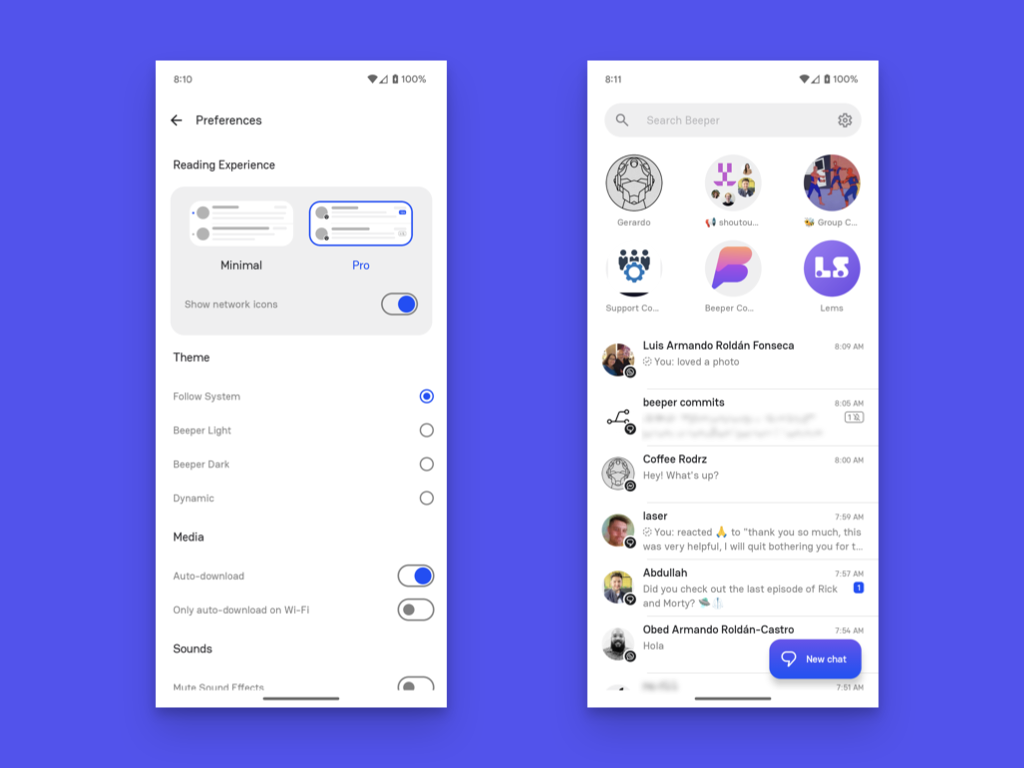
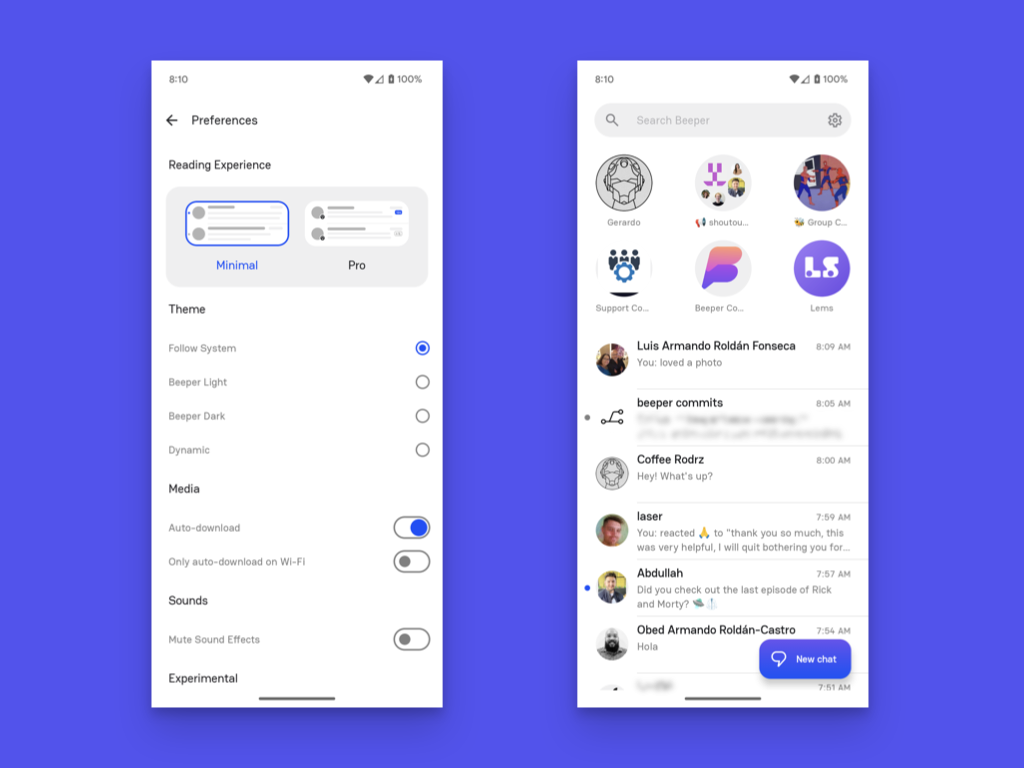
The Beeper mobile app lets you toggle your reading experience between Minimal and Pro. Here are the differences between the two options:
-
When using Minimal, all your chats will show only the chat title which could be one of the following:
- the name of the person you're chatting with;
- the name of the chat; OR
-
a phone number if the recipient is not saved in your contacts yet.
It will not show any chat network indicator to provide you the impression of a single inbox.
-
In contrast to Minimal, Pro shows you more details about your chats in the inbox list view. In addition to what you already see in Minimal mode, you will also see:
- the number of unread messages in the chat
- an optional chat network indicator near the chat avatar