Google Messages: How to fix no devices found for gaia pairing while setting up connection
TL;DR: You need to set up Google Account Sign-in pairing mode.
How to fix no devices found for gaia pairing when setting up Google Message?
If you encounter this error, it means you don't have your Google Messages native app set up to pair devices via Account Sign-in.
Here's what you need to do:
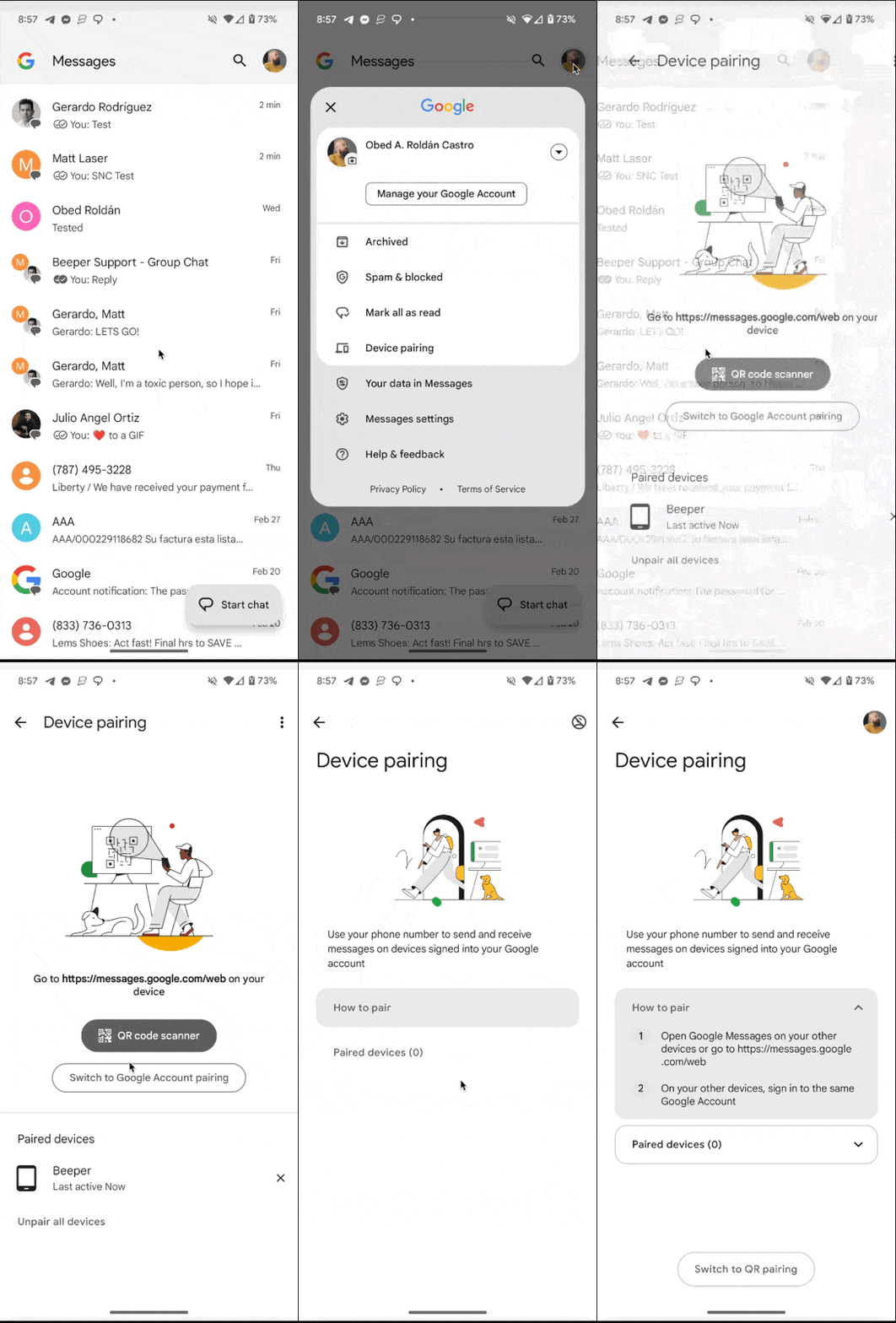
- Open your Google Messages native app
- Tap over your Google account Avatar on the top right corner
- Select “Device pairing”
- You will be given the option to use the QR code scanner, Switch to Google Account pairing, and your Paired devices.
- Select “Switch to Google Account pairing”
- Now, you can start to link your Google Messages account and Beeper, either on the Beeper Android app or Beeper Cloud Desktop.
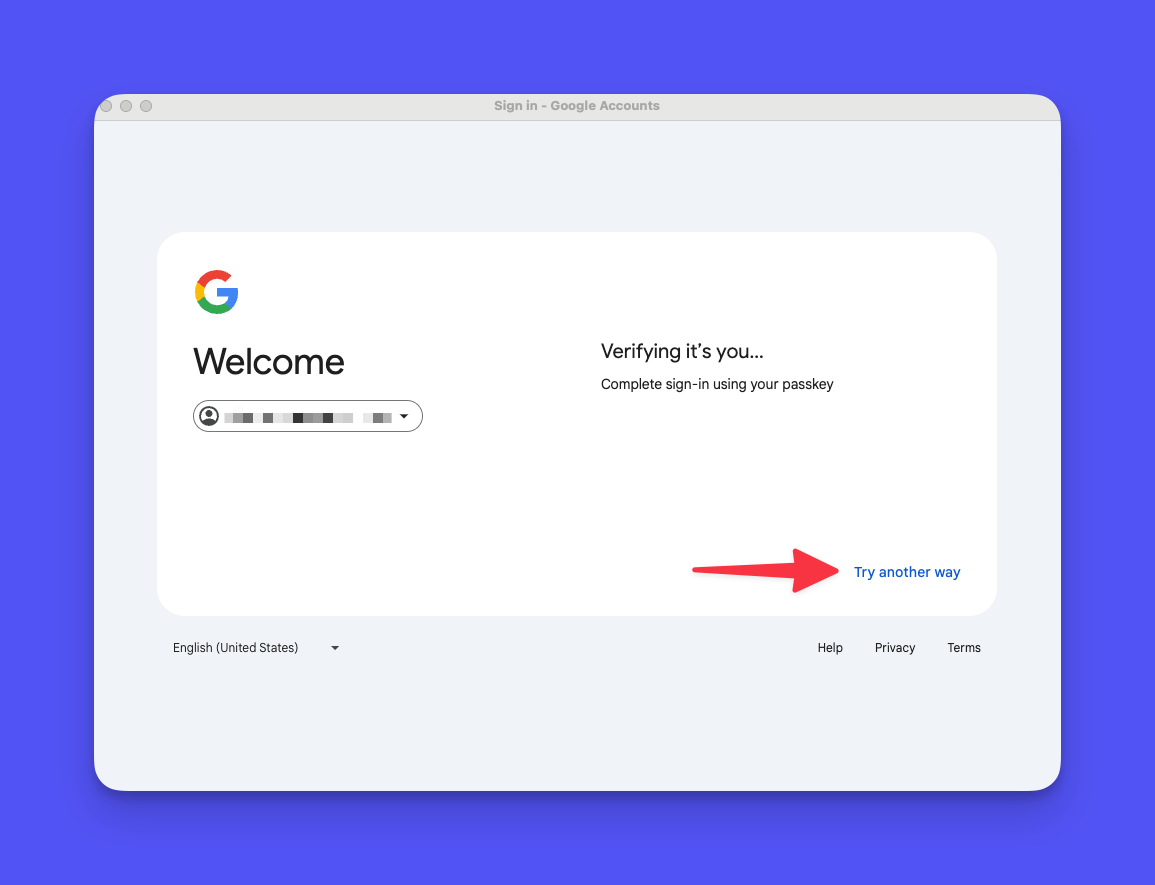
Google account Sign-In Passkey
If you use your MacBook's Touch ID as your Google account passkey, you must press “Try another way” and use your password, followed by Two-step Verification if you're connecting using Beeper Desktop.