Instagram - Getting Started Guide
Connecting Instagram
Beeper connects with Instagram to bring all your chats into one unified inbox. By linking your Instagram account to Beeper, you can send and receive Instagram messages—right alongside your other chat apps—all in one place.
Beeper Desktop
- Open the Settings (gear icon in the bottom-left corner).
- Go to Accounts and select Instagram.
- Click ‘Connect’ and a new window will open follow the prompt to log in with your Instagram username and password.

Beeper Android
- Open your Beeper Android app and go to Settings > Chat Accounts
- Click ‘+ Add an Account’
- Find Instagram from the list and select ‘Connect’ > Continue
-
Log in to your Instagram account. Once successfully logged in, it will take you back to Beeper

Beeper iOS
- Open your Beeper iOS app and go to Settings > Accounts
- Click ‘Add an Account’
- Find Instagram from the list and select ‘Connect’ > Continue
-
Log in to your Instagram account. Once successfully logged in, it will take you back to Beeper

Having trouble connecting?
Meta has strong security measures in place to protect your account. When you connect Instagram to Beeper, it may appear as a new device, browser, or location. Because of this, Meta may prompt you to complete additional verification steps—this is a normal part of their login security process.
⚠️ Important to know:
- Beeper servers are located in a variety of different locations, so the map may show a different city
- Beeper will show up as an Android phone, usually a Pixel 6 or a Linux computer
If you have trouble connecting your Instagram account in Beeper because of this, here's what you can do:
-
Confirm the login attempt
- Instagram sends you an email alert for each new login, just like in the screenshot below. If there's an option to confirm the login attempt from there, please do so and then try connecting again.
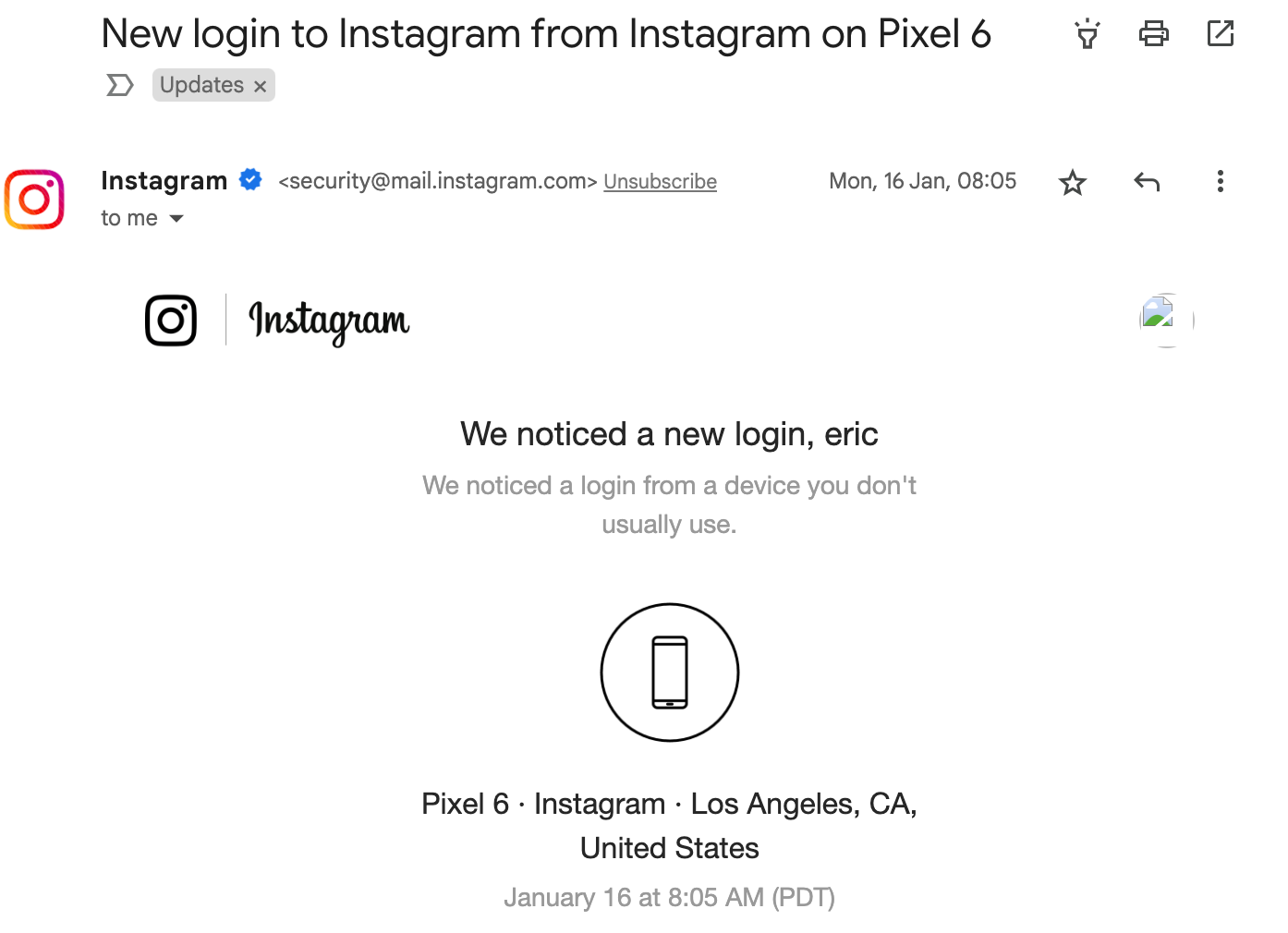
- Similarly, you may receive a prompt to confirm the login on your Instagram app if you're currently logged in to Instagram on the mobile app. Approve the login and then try connecting Instagram to Beeper again.
- Instagram sends you an email alert for each new login, just like in the screenshot below. If there's an option to confirm the login attempt from there, please do so and then try connecting again.
-
Before you connect: turn on Authenticator app 2FA
Instagram requires two-factor authentication with an Authenticator app to connect to Beeper.- In the Instagram mobile app, go to Accounts Center → Password and security → Two-factor authentication.
- Select your account and choose Authentication app.
- Follow the prompts to link your Authenticator app (for example, Google Authenticator, Authy, or 1Password).
SMS and WhatsApp codes aren't supported for connecting Instagram to Beeper. If you already use one of these methods, add an Authenticator app before connecting.
Passkeys aren't supported. If a passkey is the only two-factor method Instagram offers for your account, Beeper shows “Meta is requiring a passkey, which is not supported.” Add an Authenticator app as a two-factor method in the Instagram app (see the steps above), then try connecting again.
Continuing with a saved Instagram profile: if you choose a saved profile to continue and that profile uses two-factor authentication, Beeper asks you to log in with that profile's own username and password instead. Enter them to continue to the two-factor step.
Instagram asks to confirm the login
Meta may treat Beeper as a new device, browser, or location. The login may show as an Android phone [[commonly a Pixel 6, confirm]] or a Linux computer, and the location may differ because Beeper's servers operate in different regions.
- Check your email for a new-login message from Instagram and confirm the attempt was yours.
- Check the Instagram mobile app for a login prompt and approve it.
- Return to Beeper and retry. If the attempt expired, start a new connection.
No code or prompt appeared
Make sure you're using the code from your Authenticator app, not SMS or WhatsApp. If it still doesn't work, contact Beeper Support with a screenshot of the verification screen.
💡 Frequently Asked Questions:
-
Can I log in with my Facebook account?
Yes, if your Instagram account is connected to Facebook, you can use your Facebook credentials to sign in.
-
I’m getting an error when logging in with my phone number.
Beeper currently does not support login using non-US phone numbers. Use your email address or Instagram username instead.
-
Messages aren’t showing up or I’m missing old chat history.
At this time, Beeper does not sync your full Instagram message history. Only new messages sent after setup may appear. Here's our chat history backfill capabilities.
-
I’m not receiving image or video attachments from Instagram chats.
Reels and Story shares sent to you in an Instagram chat are supported and show up in Beeper. If a specific photo or video is missing, check whether it was sent as view-once media; those aren't supported in Beeper.
-
Some of my messages aren’t sending or keep failing.
Try reconnecting Instagram in the Network Connections section. If issues continue, submit a bug report by long pressing (or right-clicking) on the failed message and select ‘Report a Problem’.
-
My connection to Instagram keeps dropping. What can I do?
This can happen if Instagram resets the login session. Simply re-authenticate via Settings > Accounts page.
-
My friend’s profile picture looks outdated. Why?
Changes to profile pictures should update immediately in Beeper. If you're seeing a delay, please get in touch with Beeper Support.
-
Which features are not supported?
Posting to your Instagram feed or Stories isn’t supported from Beeper. New message requests also need to be accepted from Instagram directly and do not get pulled into Beeper unless already accepted or replied to on Instagram. View-Once Media won't sync to Beeper.
-
Can I connect more than one Instagram account?
Yes, if your subscription allows multiple chat network accounts, you can connect multiple Instagram accounts through on-device connections, but not through Beeper Cloud. For more information, see here.
-
Why am I not seeing read receipts?
Read receipts are only available when using the On-Device version of the Instagram connection. They are stored locally on your device and are not synced to the cloud.
-
Why can’t I see view-once photos or videos?
View-once media doesn’t sync to Beeper. To see it, open the chat in the Instagram app.
🆘 Need More Help?
We're here to make sure things go smoothly! Please message us at help@beeper.com.